• About Heli

HeliFromFinland

~ Heli's thoughts on Database Designing, Oracle SQL Developer Data Modeler, User Groups etc.

HeliFromFinland

Monthly Archives: June 2016

How to create a bitmap index?

03 Friday Jun 2016

Posted by Helifromfinland in Data Modeler

≈ Leave a comment

Because a bitmap index is an Oracle specific feature that can only be done in the Physical Model for Oracle RDBMS.

You define the indexes in Relational Model. First go to Table Properties of the table you want to create an index for and press the green plus. Add the information needed.

Index1

Then in Physical Model (for Oracle RDBMS) select that index and define it as bitmap index.

index2

When generating the DDL, you will get something like this:

CREATE BITMAP INDEX Orders_Customer_CustNO_IDX ON Orders
(
Customer_CustNO ASC
)
LOGGING ;


Note: If you want ALL your indexes in Oracle RDBMS to be bitmap indexes, you can define a template for indexes and set bitmap as a default. First enable the defaults for Oracle Physical Models Index Templates in Preferences:
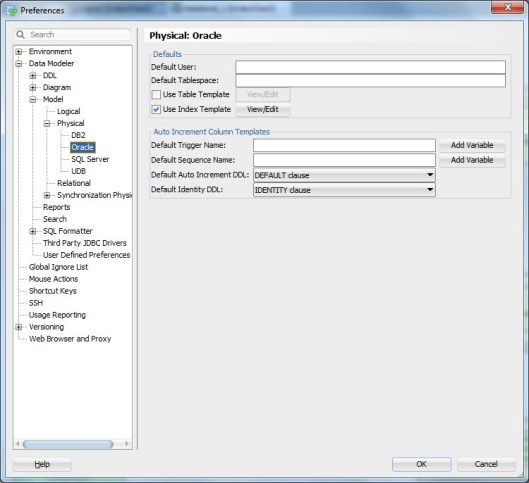
3bitmap1

Then set (Press View/Edit) the default for Bitmap Index as YES.

3bitmap2


How to generate an index automatically for a Primary/Foreign or Unique Constraint?

03 Friday Jun 2016

Posted by Helifromfinland in Data Modeler

≈ Leave a comment

I have defined Primary Key, Unique Key and Foreign Key Constraints and I know I want to have indexes for them. Do I really need to go and define them one by one in Data Modeler? Not necessarily.

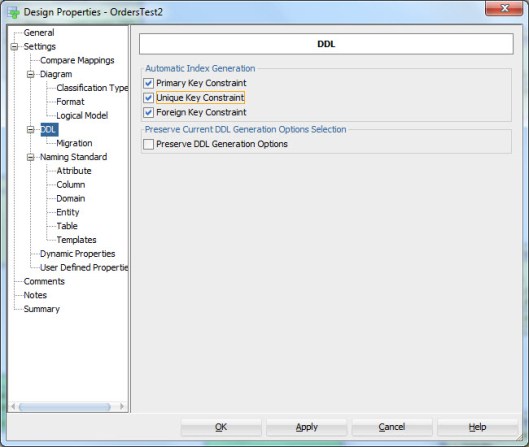
Go to Design Properties (double-click the name of the design or right-click and select Properties). Enable all or those you want from Automatic Index Generation.

2bitmap1

Now when you generate the DDLs, the DDLs for generating these indexes will be generated automatically.

How are those automatically generated indexes called? You can define that also in Design Properties as the template for Automatic Index.

2bitmap2


#AMIS25

03 Friday Jun 2016

Posted by Helifromfinland in Events

≈ Leave a comment

First of all congratulate AMIS! 25 years is a great achievement!

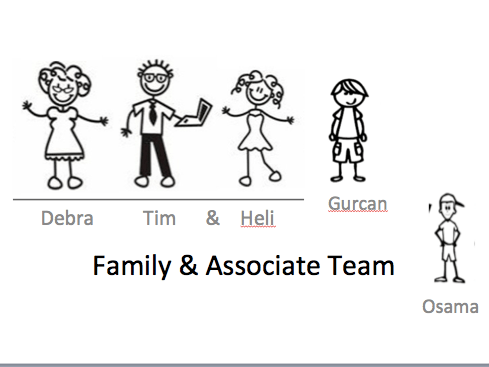
I just attended the #AMIS25 event. On Wednesday we had a hackathon organized by OTN for ACEs. Later the name of the event was changed to OTN Cloud Developer Challenge and a challenge it was 🙂 My team was Oracle Family and the Associates including my Oracle Dad Tim Hall, my Oracle Mom Debra Lilley, Gurcan Orhan and Osama Mustafa. Gurcan was our team leader and Osama Mustafa missed the whole fun because of visa issues.

OracleFamilyTeam

We built a demo application for speakers for OTN Tours to tell who will be attending, which flights and which hotels they have booked etc. I really hope we will finish building this application because it definitely would be extremely useful! Thank you to OTN for organizing and thank you to my team for all the fun! For instance I now know how to build REST Services (I built quite many of those 🙂  ).

After we finished the challenge the AMIS25 started with a welcome reception.

On Wednesday morning we were ready to start the official event. I gave two talks: one on my favorite features of SQL Developer and another one on how to manage changes in structures of database objects. Both my sessions were well attended (even though Jonathan Lewis was speaking at the same time as I gave my second presentation 🙂  ). Thank you very much for attending!

Thank you Lucas Jellema for inviting me! Once again congratulate AMIS and thank you for a great event! Now I am on my way to Bulgaria for the BGOUG…


– – Heli


How to create a Physical Model?

01 Wednesday Jun 2016

Posted by Helifromfinland in Data Modeler

≈ Leave a comment

I have designed the Logical Model, pressed the double-arrow (Engineer to Relational Model) to get the Relational Model. Now I am ready to create a Physical Model for that Relational Model but how to do it?

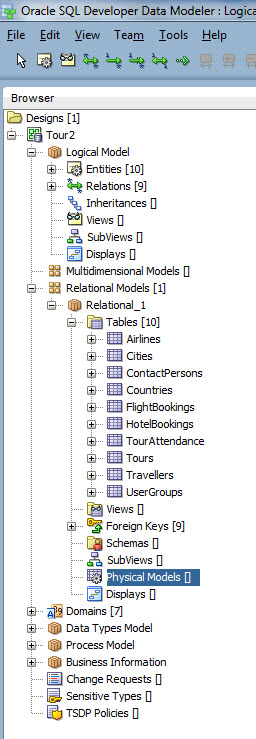
In Browser, under your Relational Model, select Physical Models.

Phys1

Right-click and select New.

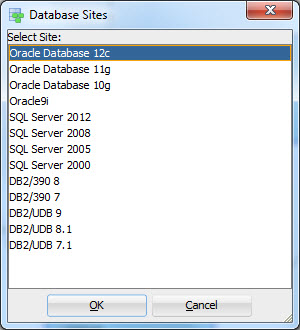
Then select the RDBMS and the version you want for a Physical Model (in Data Modeler terminology it is the Database Site).

Phys2

That’s it. You now have the Physical Model for the Relational Model. Note that you can have several Relational Models for one Logical Model and several Physical Models for one Relational Model, if needed.


NOTE: The Physical Model is not opened automatically when you open a design (for performance reasons). Go to the same Physical Models, right-click and select Open.


Newer posts →

Subscribe

  • Entries (RSS)
  • Comments (RSS)

Archives

  • October 2023
  • October 2022
  • October 2021
  • April 2020
  • October 2019
  • October 2018
  • June 2018
  • December 2017
  • October 2017
  • September 2017
  • July 2017
  • April 2017
  • March 2017
  • February 2017
  • January 2017
  • December 2016
  • November 2016
  • October 2016
  • September 2016
  • August 2016
  • July 2016
  • June 2016
  • May 2016
  • April 2016
  • March 2016
  • February 2016
  • December 2015
  • November 2015
  • October 2015
  • September 2015
  • August 2015
  • July 2015
  • June 2015
  • May 2015
  • April 2015
  • March 2015
  • January 2015
  • December 2014
  • November 2014
  • October 2014
  • September 2014
  • August 2014
  • June 2014
  • May 2014
  • April 2014
  • January 2014
  • December 2013
  • November 2013

Categories

  • Data Modeler
  • Database design
  • Events
  • General
  • Oracle
  • SQL Developer

Meta

  • Create account
  • Log in

Blog at WordPress.com.

Privacy & Cookies: This site uses cookies. By continuing to use this website, you agree to their use.
To find out more, including how to control cookies, see here: Cookie Policy
  • Subscribe Subscribed
    • HeliFromFinland
    • Join 53 other subscribers
    • Already have a WordPress.com account? Log in now.
    • HeliFromFinland
    • Subscribe Subscribed
    • Sign up
    • Log in
    • Report this content
    • View site in Reader
    • Manage subscriptions
    • Collapse this bar
 

Loading Comments...