• About Heli

HeliFromFinland

~ Heli's thoughts on Machine Learning, AI, AI Agents, Database Designing, Oracle SQL Developer Data Modeler, User Groups and much more

HeliFromFinland

Category Archives: Data Modeler

Oracle SQL Developer Data Modeler

Why does my Data Modeler look different from yours?

06 Saturday Jun 2015

Posted by Helifromfinland in Data Modeler

≈ Leave a comment

There is still some confusion on different appearances of Oracle SQL Developer Data Modeler. I hope this will explain a bit.

There are two different appearances of Data Modelers: the one integrated in Oracle SQL Developer and the standalone Data Modeler. And they do look different and using them is different. If you want to design the databases I would recommend the standalone version. I would use the integrated version mainly as a viewer to Data Modeler.

Integrated version:

http://www.oracle.com/technetwork/developer-tools/sql-developer/overview/index-097090.html

Standalone:

http://www.oracle.com/technetwork/developer-tools/datamodeler/overview/index.html

Journaling tables in Data Modeler 4.1

22 Friday May 2015

Posted by Helifromfinland in Data Modeler, Database design

≈ 4 Comments

Creating journaling tables is very easy with Oracle SQL Developer Data Modeler.

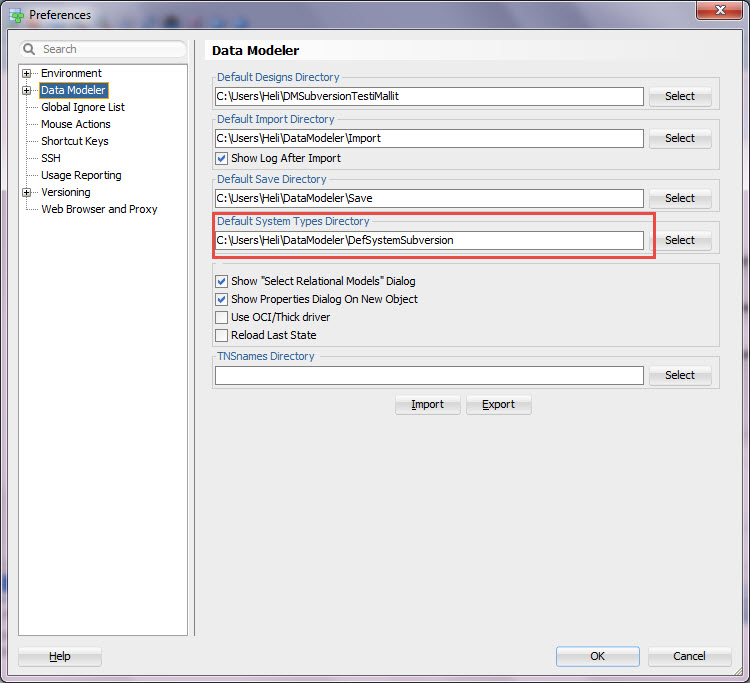
1. If you have not done so yet copy the file dr_custom_scripts.xml from datamodeler\datamodeler\types\ to your Default System Types Directory. Now you will have the journaling script ready for Data Modeler to use.

If you do not remember where your Default System Types Directory is, go and check from Preferences:

Journaling_05

2. If you want to test the script or change it, go to Table DDL Transformations:

Journaling2

Select the script Journal tables. Test  by pressing the Test button and Save any changes by pressing the Save.

Journaling3

3. Generate the journal tables

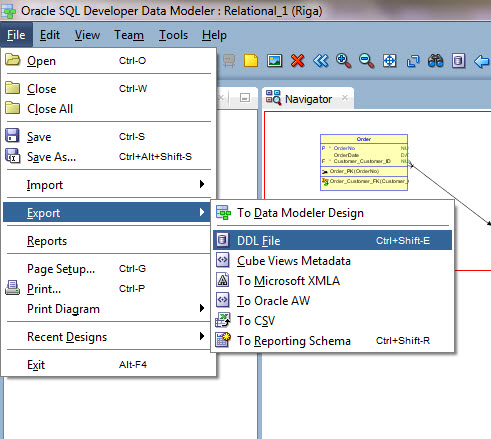
Start by selecting Export, DDL File from File Menu.

Journaling4

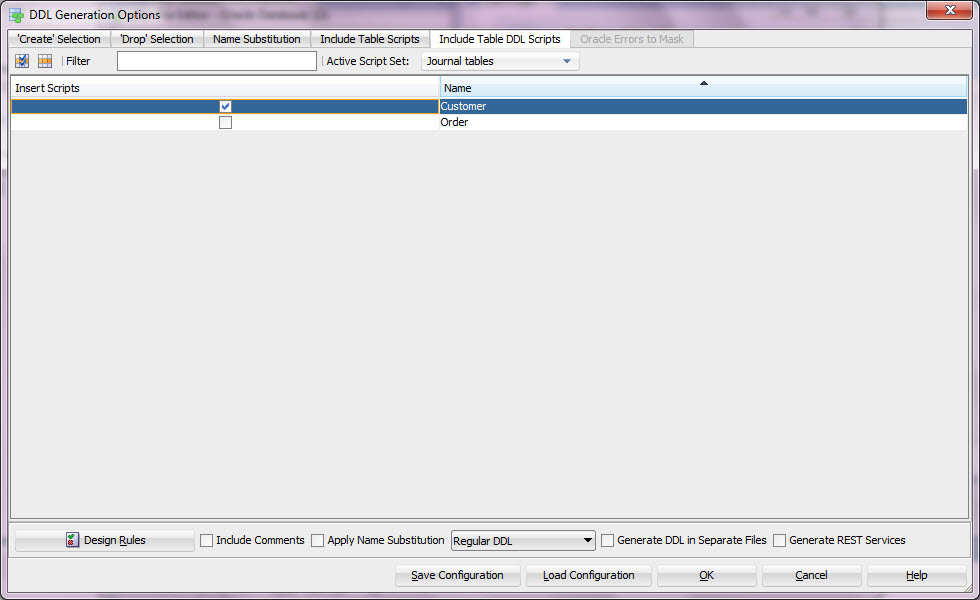
Select the script and tables you want to create the journal table in Include Table DDL Scripts tab:

Journaling5

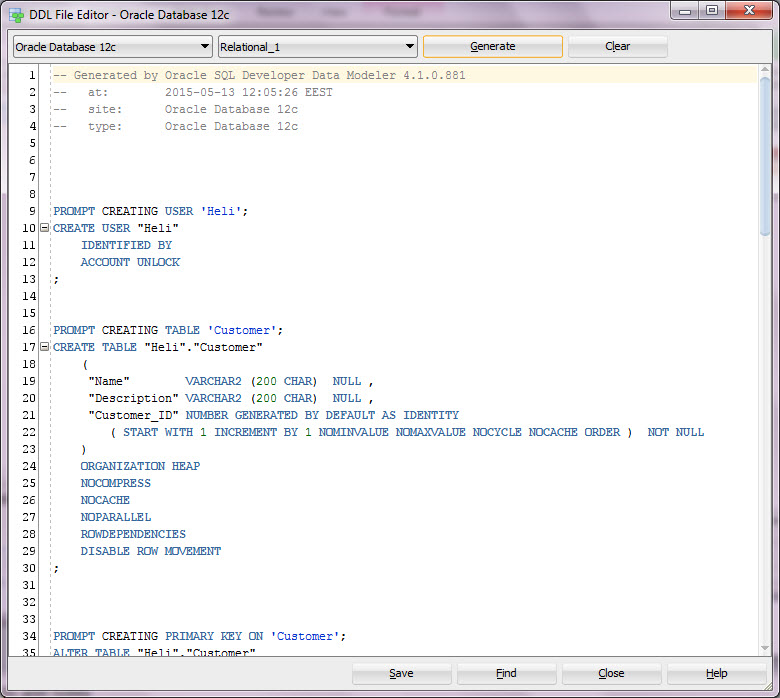
Check the SQL generated:

Journaling6

If you are happy with it just save the DDL file.

Creating journaling tables could not be easier than this 🙂

Finding an older version of the design from Subversion

13 Wednesday May 2015

Posted by Helifromfinland in Data Modeler, Database design

≈ 2 Comments

You might want to see an older version of your database design. Maybe to get the DDLs to create a database of that version or maybe to compare to another version of the database design or the data dictionary.

How to get that version from Subversion?

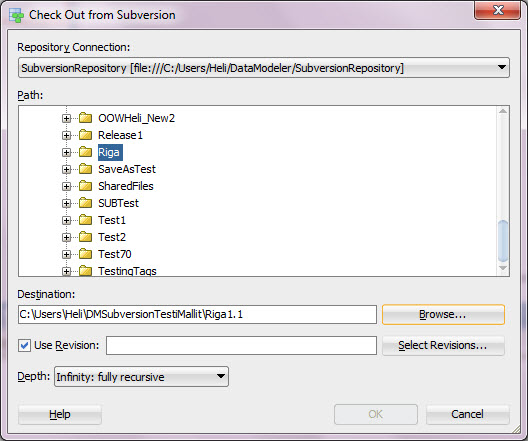
First select Team, Check Out…

v11_1

Enable Use Revision and press Select Revisions…

v11_2

Select the revision that matches your version and press OK.

Open the design from the working directory.

v11_3

Maybe you would like to get the DDLs to create a database of version 1.1?

Select File, Export, DDL File.

v11_4

Select the RDBMS Site wanted (for the SQL syntax).

v11_5

Select the elements you want in the DDL.

v11_6

See the SQL and if you like it press Save.

v11_7

Run the saved SQL script to your database.

Now you have a design of version 1.1 and a database with version 1.1 structures.

Reporting with Data Modeler, a quick overview

17 Tuesday Mar 2015

Posted by Helifromfinland in Data Modeler

≈ 9 Comments

A tool for database design without reporting functionalities would be worth nothing! You need reporting for auditing, quality control, sharing information, …

In Data Modeler you can generate reports either from open designs or from a Reporting Repository.

Open Designs

If you want to create a report based on open designs there are three possibilities:

  • File | Reports
  • Search
  • File | Print Diagram

Depends on what you need which one is the best.

The reports can be generated into different formats:

  • PDF
  • HTML
  • RTF
  • XLS/XLSX
  • The format selections depends on the way of reporting and the templates used.

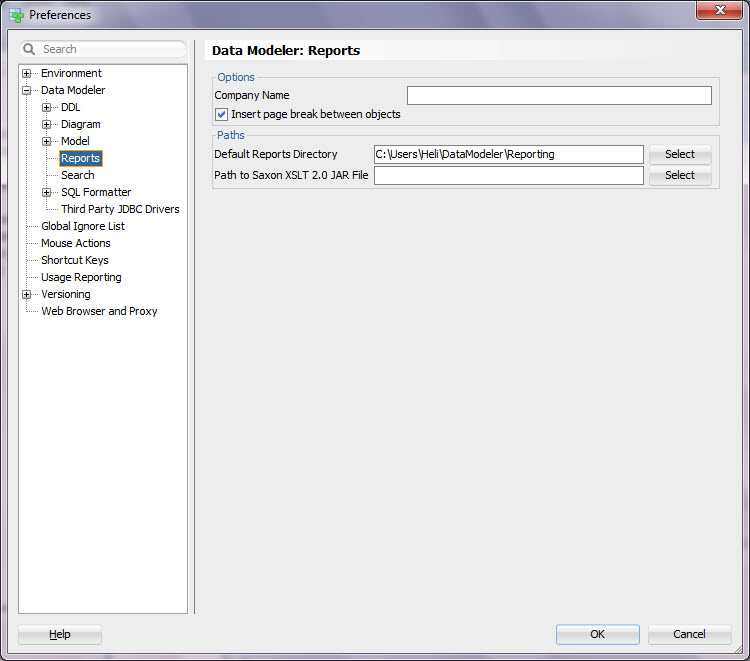
The Preferences you should look into:

RepPref1

RepPref2

Reporting Repository

A Reporting Repository can be any Oracle database. I recommend you create a new user in a database as the schema owner of the Reporting Repository. After you have created the user, edit the file datamodeler\datamodeler\reports\Reporting_Schema_Permissions.sql and run it in the repository to grant privileged needed. The first time you export a design to the reporting repository, the reporting schema structure is created automatically (log in as the schema owner). In datamodeler\datamodeler\reports\Reporting Schema diagrams, you can find the descriptions of the reporting repository structures.

To export to the Reporting Repository select File | Export | To Reporting Schema. You can also maintain the reporsitory (drop/enable/disable indexes, delete designs from repository) from File | Export | To Reporting Schema and add/remove glossaries to/from the Reporting Repository.

To run reports from the Reporting Repository select File | Reports or connect to the database and use SQL.

Hive tables with Data Modeler

16 Sunday Nov 2014

Posted by Helifromfinland in Data Modeler

≈ Leave a comment

Since version 4.0.2 Data Modeler has supported Hive tables, now in 4.0.3 also SQL Developer does that. It means that at least you can:

– design Hive tables

– reverse engineer Hive tables

– create SQL queries on both Oracle tables and Hive tables

The implementation is a special external table.

I will write a little about designing and reverse engineering a Hive table. I leave the query part to Jeff Smith to complete:-)

1. How too design a Hive table

Design a table as usual. In relational model you can set dynamic properties hiveName and hiveSchema for the table. These properties will be taken into account in DDL generation.

In Physical Mode define “Organization” property for a table to “External” and the “Access Driver” in “External Table Propertied” to “ORACLE_HIVE”.

And there you are. Now just Export the DDLs and you have the DDLs for creating the external Hive table.

Note that the table will be found under “External tables” tab in “DDL Generation Options”.

2. How to reverse engineer a Hive table

Since version 4.0.2 Data Modeler and since version 4.0.3 SQL Developer has been supporting Oracle Big Data SQL and Hive. This support allows you to connect to Hive and reverse engineer Hive tables. To be able to create a connection to Hive you must first download the JDBC drivers and connectors. Data Modeler supports both Hortonworks and Coludera implementations, SQL Developer only supports Cloudera. You can download the Cloudera JDBC Drivers from http://www.cloudera.com/content/cloudera/en/downloads.html.

Unzip. Note: there is also a PDF file that is worth reading.

Start Data Modeler or SQL Developer. Go to Tools, Preferences, Third Party JDBC Drivers and add the drivers on the list: press the green plus and find the files extracted from Cloudera_HiveJDBC4_<version>.zip. Add all the files.

Close Data Modeler or SQL Developer and restart it. Select “Import”, “Data Dictionary” from “File” menu and press “Add” in the “Data Dictionary Import Wizard” to create a new connection.

For Data Modeler the Hive connection is a JDBC connection with “Other ThirdParty Driver”. Just select the JDBC tab and define the “JDBC URL” and “Driver Class”. When you download the drivers you will also get a PDF file that explains what to insert here.

For SQL Developer it is a new tab “Hive” in “New / Select Database Connection” screen.

After you have created the connection you can reverse engineer from a Hive table using the “Import”, “Data Dictionary” and your new connection.

Reverse engineer and discover foreign keys

31 Friday Oct 2014

Posted by Helifromfinland in Data Modeler

≈ 1 Comment

You can easily document your database with Data Modeler: just reverse engineer the database with File-> Import -> Data Dictionary. But what if the database has no foreign keys? What’s the point of documenting then? Just tables that has nothing to do with each other….

Well, Data Modeler can help with that too: you can use “Discover Foreign Keys” functionality to find the foreign keys that should be in the database and even generate the DDLs for them if needed…

There are two ways Data Modeler can guess the foreign keys for you: the column has the same name as a primary key column in parent table or using the naming templates. And combinations of those.

Select the relational model from the Browser. Right-click and select “Discover Foreign Keys”. I have two tables: CUSTOMER and ORDER.
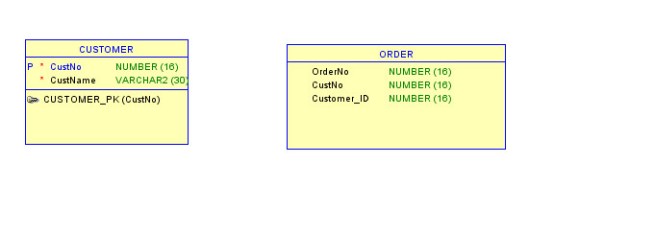
Tables

I will ask Data Modeler to find me the foreign keys.

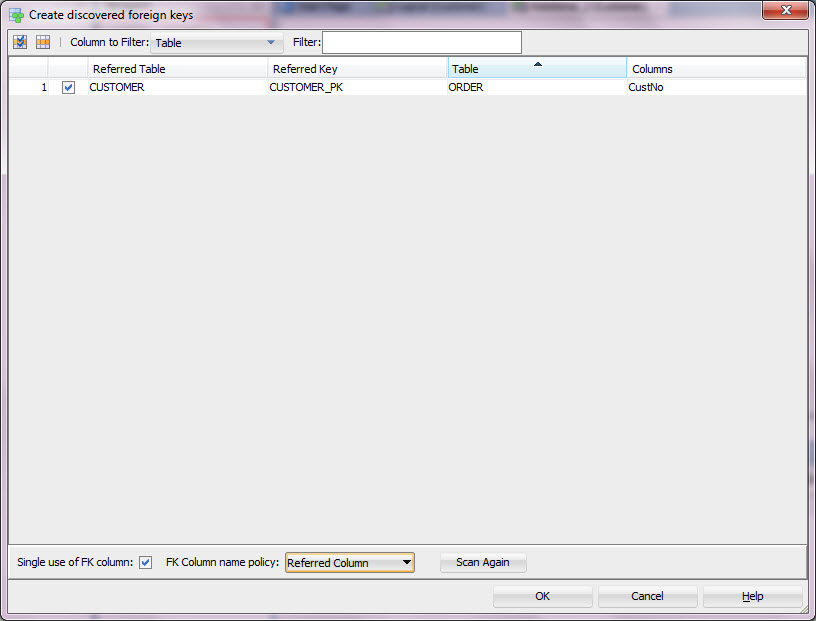
If I select “Referred Column” as the “FK Column name property” and press “Scan Again”, Data Modeler suggests that column CustNo might be a potential foreign key column.
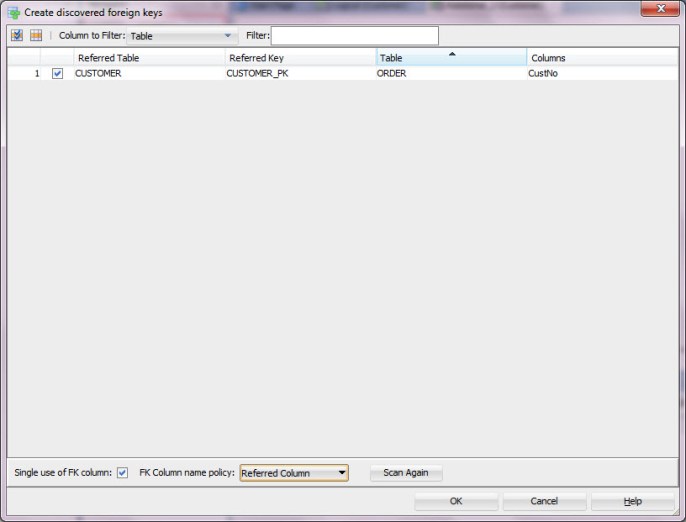
ReferredColumn

If I agree on that I press OK and the foreign key has been created automatically into my relational model.

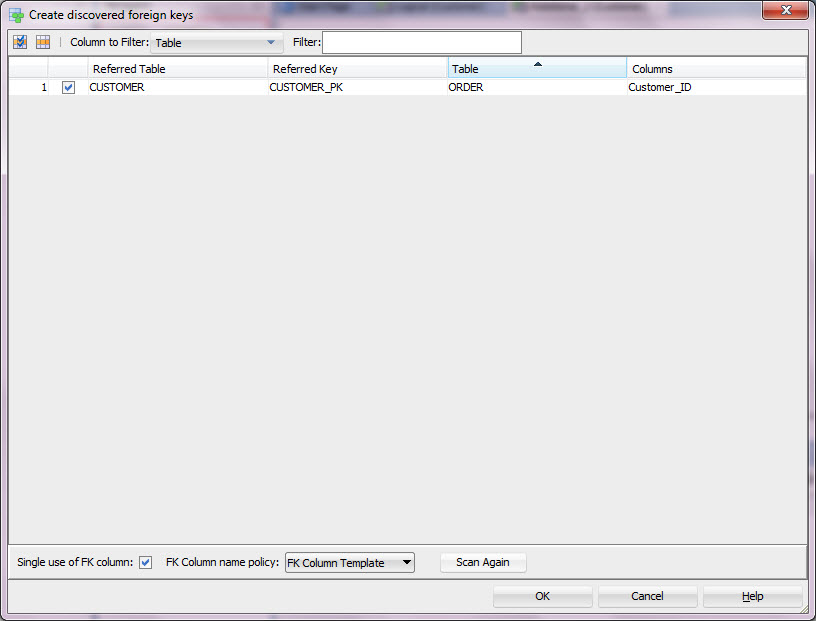
If I select “FK Column Template” as the “FK Column name property” and press “Scan Again”, Data Modeler suggests that column Customer_ID might be a potential foreign key column.

FKColumnTemplate

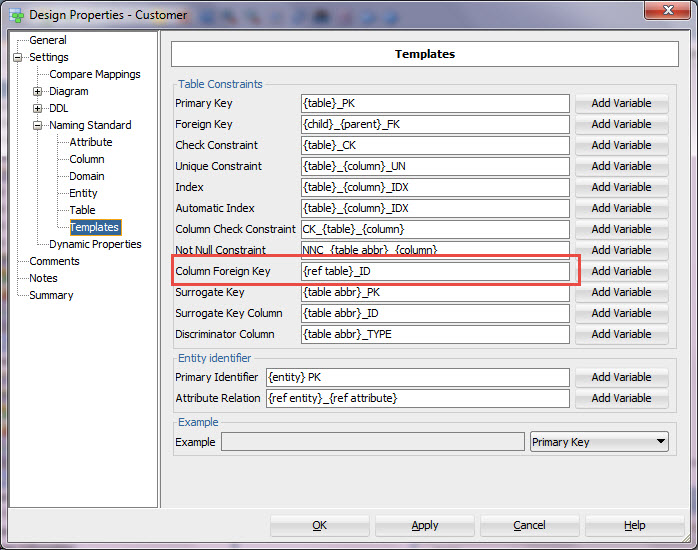
The reason for that is that I have defined in my Design Properties that a foreign key column will be named as PARENTTABLE_ID.

Template

If you want Customer_ID to be the foreign key just press OK.

You can also select either “Referred and Template” or “Template and Referred” as the “FK Column name property”. The first one tries to find first columns with fitting name and secondary columns that fit the template, the latter does the opposite. In my example if I select “Referred and Template” the result would be the same as with “Referred” and if I select “Template and Referred” it would be the same as with “FK Column Template”. But if you have both naming standards in the database the results might be very different.

When you have created the discovered foreign keys into the logical model remember to press “Engineer to Logical Model” to get the relationships to entities and to the logical model as well.

All discovered foreign keys have a Dynamic Property (createdByFKDiscoverer) attached to them and can be easily found using that. If you want to remove the discovered foreign keys, select “Remove Discovered Foreign Keys “ from “Edit” menu. The foreign keys are removed without notice. Note that the Dynamic Property is not engineered to the relationship in logical model. If you decide to remove the discovered foreign keys for some reason remember to press “Engineer to Logical Model” again so that the relationships will also be removed.

I am sure you already guessed that there are some restrictions:

– the parent table must have either a Primary Key or a Unique Key that will be used while comparing

– the columns compared must be of same datatype, so not only the naming is enough

I think this is a great functionality and I am sure you will save a lot of time and money with it. Have fun!

I cannot see Incoming Changes!

18 Saturday Oct 2014

Posted by Helifromfinland in Data Modeler

≈ Leave a comment

My colleague updated the design but I cannot see those changes in my design. I have checked the design out from Subversion and I have the .svn file in my working copy directory. What is wrong?

Nothing. You must first select Refresh Incoming Changes in Pending Changes pane and after that you can Update Working Copy. Data Modeler does not automatically ask Subversion for incoming changes. You must do it yourself before updating the working copy.


UPDATE: DM 4.1.5. In Pending Changes select the Incoming Changes tab and select Refresh Incoming Changes.

incomingchanges


How can I see what is in Subversion?

18 Saturday Oct 2014

Posted by Helifromfinland in Data Modeler

≈ 2 Comments

I have heard that Subversion is integrated to Data Modeler. What does that mean and how can I see what is inside Subversion? I do not want to install any clients or anything…

Go to Team menu and select Versions. The Versions browser opens. You use this browser for creating directories to Subversion, working with Subversion and for seeing what is in Subversion. Go to Team menu again and select Pending Changes. The Pending Changes tab appears. In Pending Changes you check for incoming changes and update the working copy, commit outgoing changes and add files.

Subversion integration also means that when you are working on Pending changes you see the table etc names and not the file names. The file names are terrible for human eyes because they are based on object ids.

Where is the Start Page everybody talks about?

18 Saturday Oct 2014

Posted by Helifromfinland in Data Modeler

≈ Leave a comment

Everybody says that Start Page is cool. It has all the links to tutorials, documents, demos, forums. But I do not have it! Did I do something wrong?

No… Just go to Help menu and select Start Page.

I cannot find the Browser!

18 Saturday Oct 2014

Posted by Helifromfinland in Data Modeler

≈ Leave a comment

Did you lose the Browser or the Navigator or the Files browser? No panic. Go to View menu and select the panel you lost. And here we are again.

← Older posts
Newer posts →

Subscribe

  • Entries (RSS)
  • Comments (RSS)

Archives

  • December 2025
  • October 2023
  • October 2022
  • October 2021
  • April 2020
  • October 2019
  • October 2018
  • June 2018
  • December 2017
  • October 2017
  • September 2017
  • July 2017
  • April 2017
  • March 2017
  • February 2017
  • January 2017
  • December 2016
  • November 2016
  • October 2016
  • September 2016
  • August 2016
  • July 2016
  • June 2016
  • May 2016
  • April 2016
  • March 2016
  • February 2016
  • December 2015
  • November 2015
  • October 2015
  • September 2015
  • August 2015
  • July 2015
  • June 2015
  • May 2015
  • April 2015
  • March 2015
  • January 2015
  • December 2014
  • November 2014
  • October 2014
  • September 2014
  • August 2014
  • June 2014
  • May 2014
  • April 2014
  • January 2014
  • December 2013
  • November 2013

Categories

  • Data Modeler
  • Database design
  • Events
  • General
  • Machine learning and AI
    • AI Agents
  • Oracle
  • SQL Developer

Meta

  • Create account
  • Log in

Create a free website or blog at WordPress.com.

Privacy & Cookies: This site uses cookies. By continuing to use this website, you agree to their use.
To find out more, including how to control cookies, see here: Cookie Policy
  • Subscribe Subscribed
    • HeliFromFinland
    • Join 53 other subscribers
    • Already have a WordPress.com account? Log in now.
    • HeliFromFinland
    • Subscribe Subscribed
    • Sign up
    • Log in
    • Report this content
    • View site in Reader
    • Manage subscriptions
    • Collapse this bar
 

Loading Comments...