• About Heli

HeliFromFinland

~ Heli's thoughts on Database Designing, Oracle SQL Developer Data Modeler, User Groups etc.

HeliFromFinland

Author Archives: Helifromfinland

Delete Object/Delete View

24 Sunday Jul 2016

Posted by Helifromfinland in Data Modeler

≈ Leave a comment

What is the difference between Delet Object and Delete View?

If you right-click and object in a diagram there might be two options: Delete Object and Delete View. “Might” because the Delete View is only available if you have that object in more than one diagram.

DeleteObject

Delete Object removes that object totally from the design: from this diagram and from all diagrams where it exists. The object is totally deleted from the design. If the object exists in more than one diagram, you will also see the Delete View option. That will delete the object BUT only from this diagram, not from the whole design.

Let’s see an example with an entity called Product.

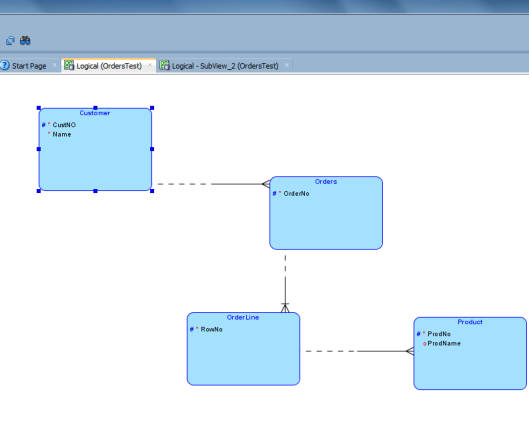
This is the Logical Model:

DeleteObject2

This is a subview:

DeleteObject3

Now in the subview I select Delete View for the entity Product.

The Logical Model still has the entity Product:

DeleteObject2

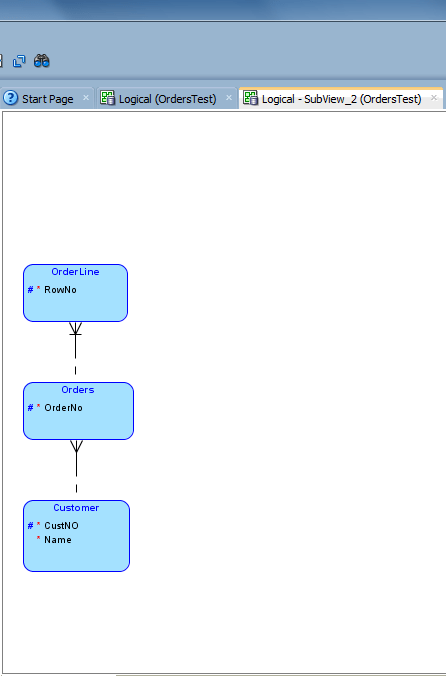
But the subview does not:

DeleteObject4


Name Substitution

23 Saturday Jul 2016

Posted by Helifromfinland in Data Modeler

≈ Leave a comment

Name Substitution can be used to change the name of an object (user, role, table, index, or tablespace) while generating the DDLs. These changes do NOT affect your design. The most common use case is that in test environment something is different from the production environment but not so much that it would be worth maintaining two separate physical models.

Let’s assume that everything is the same in both test and production except the schema owner of the objects: in production they are owned my PROD and in test by TEST. To be able to get the DDLs for creating tables for the test environment we double-click the design name (or right-click and select Properties) in Browser, then go to DDL | Migration.

NameSub1

Press the green plus and define the rule for Name Substitution and press Apply.

NameSub2

Now the rule for changing word “PROD” to “TEST” has been defined but this will not cause any action while generating the DDLs unless you specifically tell the tool to use this.

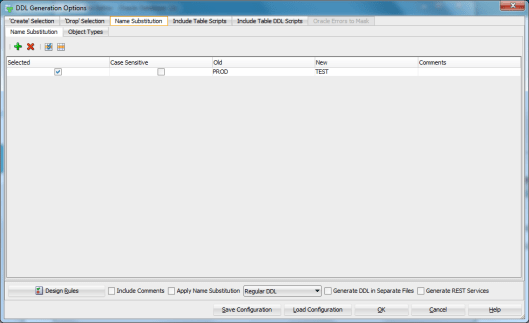
Let’s generate the DDL (File | Export | DDL File). Now go to Name Substitution tab and make sure the rule has been selected (Selected is enabled):

NameSub3

You can also create new rules in this screen. Just press the green plus and add the rule.

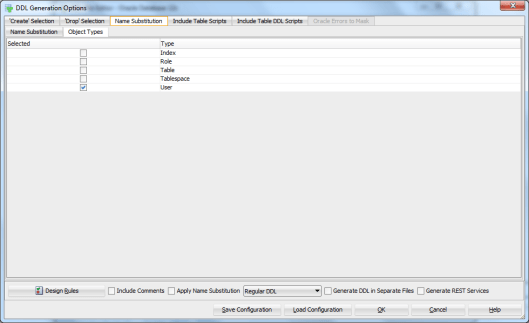
Now go to Object Types tab and select the object types you want this rule to be affecting:

NameSub6

Now you have defined the rule and which object it will be affecting but still if you now press OK (to generate the DDLs nothing will be changed). Next thing to do is to enable the Apply Name Substitution checkbox on the bottom of the screen:

NameSub7

Now press OK.

Instead of getting a DDL like this:

CREATE TABLE PROD.Customer
(
CustNO NUMBER (10) NOT NULL ,
Name   VARCHAR2 (100) NOT NULL
)
LOGGING ;
ALTER TABLE PROD.Customer ADD CONSTRAINT Customer_PK PRIMARY KEY ( CustNO ) ;

…

you get a DDL like this:

CREATE TABLE TEST.Customer
(
CustNO NUMBER (10) NOT NULL ,
Name   VARCHAR2 (100) NOT NULL
)
LOGGING ;
ALTER TABLE TEST.Customer ADD CONSTRAINT Customer_PK PRIMARY KEY ( CustNO ) ;

…


I know, I know. You can have the DDLs without the schema owner, connect in the database with the right credentials and problem solved without the schema owner added to the script. But I do make mistakes, like connect to a wrong database, so I prefer having the DDLs as human error free as possible. Besides this is just a simple example how Name Substitution can be used 🙂

Propagate Properties

22 Friday Jul 2016

Posted by Helifromfinland in Data Modeler

≈ Leave a comment

Quite often we need to set the same properties for several objects in the physical model. It would be very time consuming if we do it one by one… Luckily the tool offers a way to do it much easier.

I would like to set the schema owner to all my tables to PROD. How do I do it?

First set the property for one of the tables:

Prop1

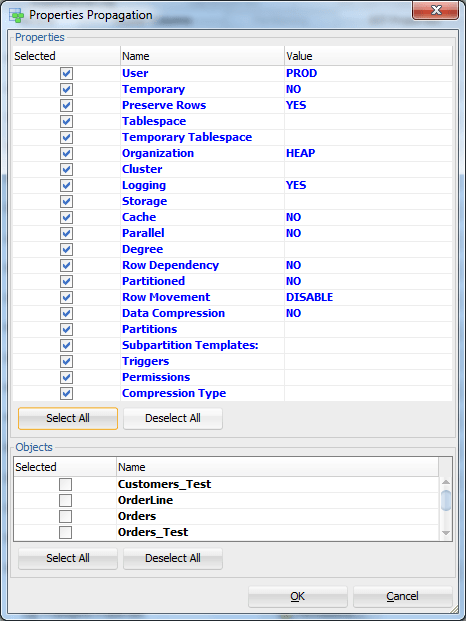
Then press Propagate Properties.

Prop2

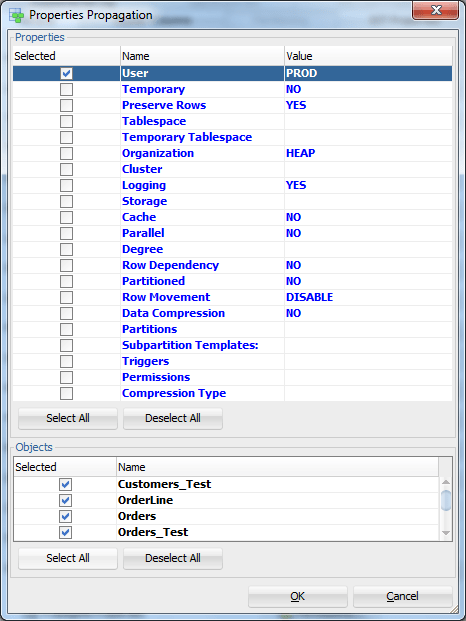
Since we only want to copy the property User, press Deselect All (in the upper part of the screen, Properties section), then select User:

Prop3

Select all the tables in the bottom of the screen by pressing Select All in the Object section of the screen:

Prop4

Then press OK.

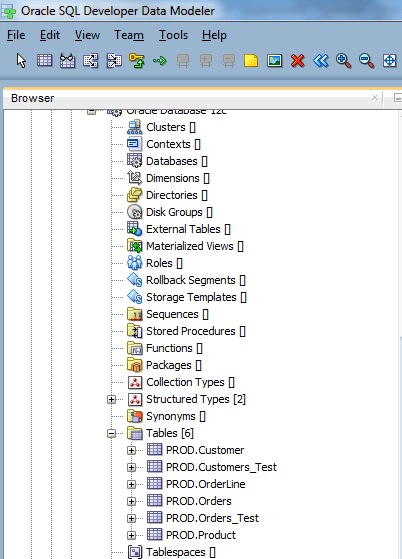
Now the schema owner for all the tables has been changed to PROD:

Prop5


Design Rules

21 Thursday Jul 2016

Posted by Helifromfinland in Data Modeler

≈ 1 Comment

Oracle SQL Developer Data Modeler offers you a way to make sure your design is of good quality. Making sure of the quality can be done very easily: it is all based on Design Rules.

DesignRules1


The rules are defined per category: General, Logical, Relational, Process Model and Physical. And under each category per element type of that category. For example for Logical: Entity, Attribute, Key and View. They are also defined as errors or warnings depending how serious they are.

DesignRules2

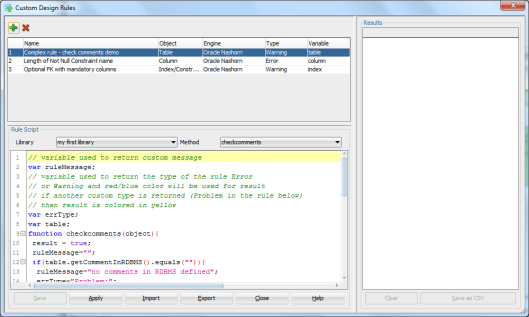
There are pre-defined Design Rules that can be found from Tools|Design Rules and Transformations|Design Rules and by selecting Tools|Design Rules and Transformations|  Custom Rules you can define your own rules:

DesignRules3

What does a Design Rule do? It checks that the rule defined has been obeyed. In pre-defined rules you will find rules like

  • Identify entities without attributes
  • Check for entity maximum name length
  • Identify attributes without datatype
  • etc

To check the Design Rules you can either go to Tools|Design Rules and Transformations| Design Rules or press the Design Rules button that can be seen in several places in Data Modeler while designing the database, then select Apply All. For example when generating the DDLs you can find the button on the lower left corner:

DesignRules4

Let’s select Design Rules and Apply All:

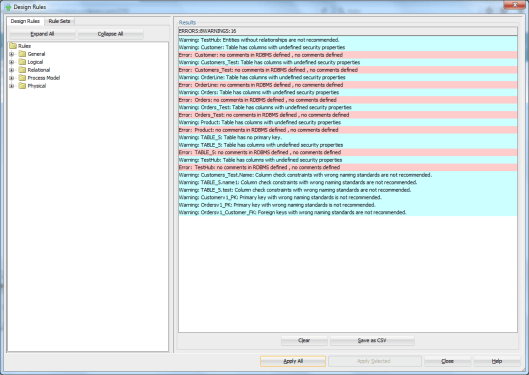
Now you can see all the errors (red) and warnings (blue) that exists in your design compared to the Design Rules:

DesignRules5

Double-click on one of the result rows and it will take you directly to the place the problem exists and you can fix it.

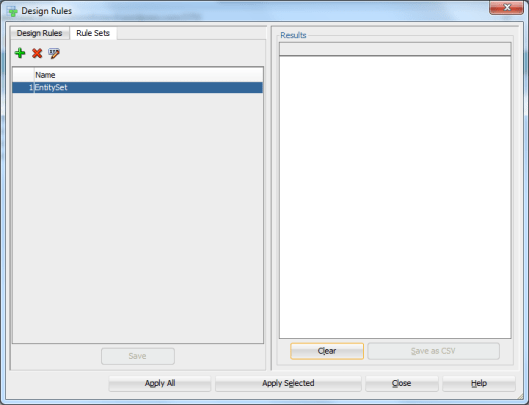
If you do not want to execute all the rules at a time you can define Rule Sets. Select the Rule Sets tab and press the green plus to add a new Rule Set. Define the name for it and press Save.

DesignRules6

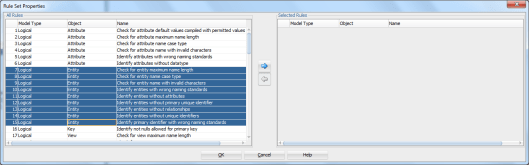
Then press the Properties icon (XYZ and a pen).Select the Design Rules wanted from the list and press the arrow pointing to right.

DesignRules7

Press OK.

Now if you Press Apply Selected instead of Apply All and then select the Rule Set you want, only those Rules are checked.


Go to Diagram

20 Wednesday Jul 2016

Posted by Helifromfinland in Data Modeler

≈ Leave a comment

I have about hundred entities/tables and I would like to navigate right to a particular entity/table in the diagram. Is there a way to do it?

Yes. In Browser right-click on the entity/table name you want to navigate to and select Go To Diagram.

GoToDiagram


If your entity/table is in several diagrams they all are shown to you. Select the diagram you want to see. Now you will have that diagram opened and the entity/table selected.


Busy times

20 Wednesday Jul 2016

Posted by Helifromfinland in Events

≈ Leave a comment

At the moment I am on vacation. I have started a healthier life: I exercise every day and I eat healthy. That’s what I have been mainly doing on my vacation 🙂

And it is very good because the rest of the year will be extremely busy! I still have my daily job at Miracle, my studies, research and teaching at the University and some travelling to speak in various events. I try to cut the travelling part down a bit to be able to work more but… First I got an invitation to come and speak at the POUG event in Poland, then 2 talks were accepted to DOAG2016 and on the content catalog of Oracle Openworld 2016 I found these:

OOW

But three trips is much less than it has been lately 🙂

This Fall/Autumn will be busy but extremely fun and interesting!

Enjoy Summer!

Cheers,

Heli

DDL Preview

16 Saturday Jul 2016

Posted by Helifromfinland in Data Modeler

≈ 3 Comments

I am used to see the DDL and only after seeing that I realize I have forgotten to design something. I know File | Export | DDL File will give me the DDL for the table but it takes me many clicks to get that. Is there any easier way to see the DDL for a table?

Yes! Right-click on the table in the Relational Model canvas and select DDL Preview:

DDLPre

That will show you the DDL for that table.

DDLPre2

TIP: if you keep the DDL Preview screen open and click on another table in that Relational Model, you will get the DDL for that table displayed in the screen.

Note: if the physical model is closed the DDLs will be very general without any physical properties. If the physical model is closed the DDL might look like this:

CREATE TABLE Customer
(
CustNO NUMBER (10) NOT NULL ,
Name   VARCHAR2 (100) NOT NULL
) ;
ALTER TABLE Customer ADD CONSTRAINT Customer_PK PRIMARY KEY ( CustNO ) ;

And if it is open it might look like this:

CREATE TABLE Customer
(
CustNO NUMBER (10) NOT NULL ,
Name   VARCHAR2 (100) NOT NULL
)
PCTFREE 10 PCTUSED 40 TABLESPACE TableSpace1 LOGGING STORAGE
  (
    PCTINCREASE 0 MINEXTENTS 1 MAXEXTENTS UNLIMITED FREELISTS 1 FREELIST GROUPS 1 BUFFER_POOL DEFAULT
  ) ;
ALTER TABLE Customer ADD CONSTRAINT Customer_PK PRIMARY KEY ( CustNO ) ;


How to see the Classification Types in a diagram?

15 Friday Jul 2016

Posted by Helifromfinland in Data Modeler

≈ Leave a comment

I have defined the Classification Types for my entities but it does not show those types in the ER diagram?

Right-click on the ER diagram canvas (Logical Model canvas) and select View Details, Classification Types:

ClasType


Design Properties, Format

14 Thursday Jul 2016

Posted by Helifromfinland in Data Modeler

≈ Leave a comment

I do not like my entities to be light blue, what can I do?
Change the format for entities!

Go to Design Properties (either double-click the Design name in Browser or right-click and select Properties). Go to Format:

Format1

Double-click the Entity row (or press the XYZ icon) and select background color and border color preferred for entities.

Format2

If you select the Font tab you can define the fonts for elements related to entities, such as attributes, datatypes or primary key elements.

Format3

If you select the Default Line Widths and Colors tab you can define the line colors and widths to elements displayed as lines in Data Modeler diagrams.

Format4

You can define these Format properties to several element in Data Modeler, not just entities.

Format5


Classification Types

13 Wednesday Jul 2016

Posted by Helifromfinland in Data Modeler

≈ 3 Comments

A Classification Type is used to devide entities or tables in groups. Using them makes it easier to see different kinds of elements in a diagram or to use Transformation Scripts to only touch certain kinds of elements, for example.

There are some pre-defined Classfication Types in Data Modeler but you are able to define your own types if wanted. You can find the Classification Types in Design Properties (double-click the design name in Browser or right-click and select Properties).

Class1

You can add new Classification Types by pressing the green plus. Insert the name, maybe the Prefix and select the Format (background color, border color, font). You can also define this Classification Type to be a preferred type. If you have plenty of Classification Types you might want to define the ones you use as preferred and use only those while defining the Classification Type for an entity. By enabling the Preferred check-box beside the green plus and red cross you set Preferred as the default when defining a Classification Type for an entity or a table.

Let’s define a Classification Type for hubs and define it as preferred:

Class2

To define a Classification Type for an entity go to Entity Properties and select the Classification Types tab:

Class3

If you defined Preferred as default in the Design Properties, it will be enabled automatically and only preferred Classification Types will be shown.

Class5

You can also enable Preferred in this screen if you want to.

Now select the Classification Type wanted from the list.

Note, if you want you can also define additional Classification Types for an entity but the properties defined for the base Classification Type will be used in a diagram.

Class6

The entity will be shown in the diagram using the definitions specified for a base Classification Type. If you change the font or colors for the Classifiacation Type afterwards, they will be changed for the entity/table of that type automatically.

Note that the Classification Type will be a property for a table as well and will be engineered to the table as it was defined for the entity when you use the Engineer to Relational Model functionality to generate the tables.

If you defined a prefix for a Classification Type you can use it as a prefix for a tableof that type. First select the relational model from Browser, right-click and select Change Object Names Prefix:

Prefix1

Then select Add Classification prefix.

Prefix2

Now the prefix defined in the Classification Type definition has been added to the table names that are defined as of that Classification Type.

You can, for example, use the prefix when defining Transformation Scripts and limit the functionality to tables with that prefix.

P.S. You can also set Classification Types to several entitites at the same time by right-clicking the Logical Model in Browser and selecting Set Classification Types.


← Older posts
Newer posts →

Subscribe

  • Entries (RSS)
  • Comments (RSS)

Archives

  • October 2023
  • October 2022
  • October 2021
  • April 2020
  • October 2019
  • October 2018
  • June 2018
  • December 2017
  • October 2017
  • September 2017
  • July 2017
  • April 2017
  • March 2017
  • February 2017
  • January 2017
  • December 2016
  • November 2016
  • October 2016
  • September 2016
  • August 2016
  • July 2016
  • June 2016
  • May 2016
  • April 2016
  • March 2016
  • February 2016
  • December 2015
  • November 2015
  • October 2015
  • September 2015
  • August 2015
  • July 2015
  • June 2015
  • May 2015
  • April 2015
  • March 2015
  • January 2015
  • December 2014
  • November 2014
  • October 2014
  • September 2014
  • August 2014
  • June 2014
  • May 2014
  • April 2014
  • January 2014
  • December 2013
  • November 2013

Categories

  • Data Modeler
  • Database design
  • Events
  • General
  • Oracle
  • SQL Developer

Meta

  • Create account
  • Log in

Create a free website or blog at WordPress.com.

Privacy & Cookies: This site uses cookies. By continuing to use this website, you agree to their use.
To find out more, including how to control cookies, see here: Cookie Policy
  • Subscribe Subscribed
    • HeliFromFinland
    • Join 53 other subscribers
    • Already have a WordPress.com account? Log in now.
    • HeliFromFinland
    • Subscribe Subscribed
    • Sign up
    • Log in
    • Report this content
    • View site in Reader
    • Manage subscriptions
    • Collapse this bar
 

Loading Comments...