What’s new in Data Modeler 4.2EA? Part 9: End of the serie

This is the last post of my What’s new in Data Modeler 4.2EA posts. What else is new is the integration to Subversion, there are some big changes. I will not go to details yet (will do it when the official 4.2 is out) but just a reminder: do not use several versions of Data Modeler to update your designs simultaneously, just select one version and use that. It is the same rule you probably follow with other software products too.

I hope this serie has been useful to you. I already have an idea about the next serie, stay tuned 🙂

 

Domain Names in a diagram

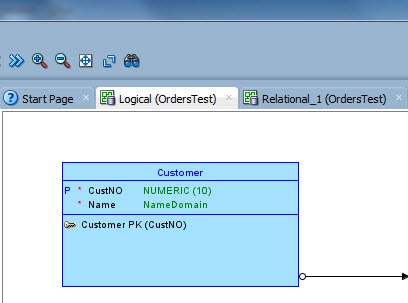
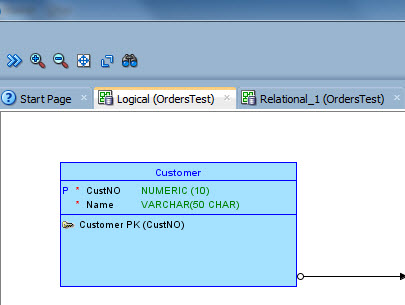
I want to see the domain name in the logical diagram instead of the datatype. How can I do it?

Go to Design Properties (either double-click the design name or right-click and select Properties). Go to Settings, Diagram, Logical Model and select Domain Name for the Domain presentation:

domainname


See the datatype for Name before the change (Used Logical Type selected):

dom1


And after we changed the Domain presentation to Domain Name (the domain used for the attribute Name is called NameDomain in our example):

dom2


What’s new in Data Modeler 4.2EA? Part 8: Group objects by schema

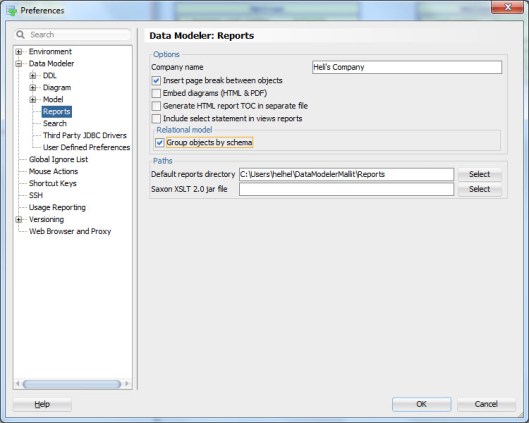
There is one more Preference left we have not discussed about: Group objects by schema.

ea2_21

Here are the TOCs of two PDF reports on the same design:

ea_toc_pdf_group

On the left hand side there is the report where the preference is set on and on the right it has been set off. If the preference has been set the TOC will show the elements in groups based on the schema owner if it has been set off the elements are shown in alphabetical order.


What’s new in Data Modeler 4.2EA? Part 7: Embed diagrams (HTML&PDF)

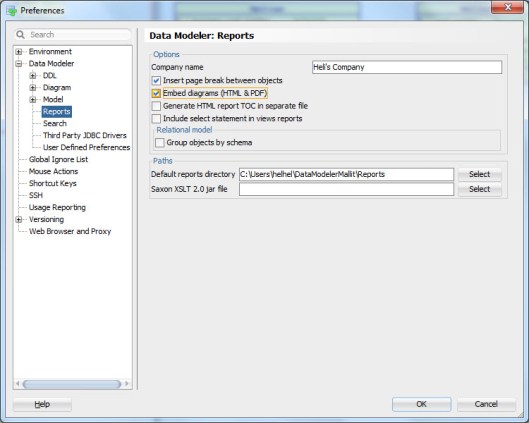
A really great new feature in this release is the possibility to add diagrams in a report AND navigate from the object in a diagram to the detail section in a report.


ea2_20

Just set the Preference Embed diagrams (HTML&PDF) on.

In this release there are still some limitations/issues on this functionality but in the next release Data Modeler will allow you to add diagrams in PDF reports to both entity and table reports and in HTML reports it allows you to add diagrams in table reports.

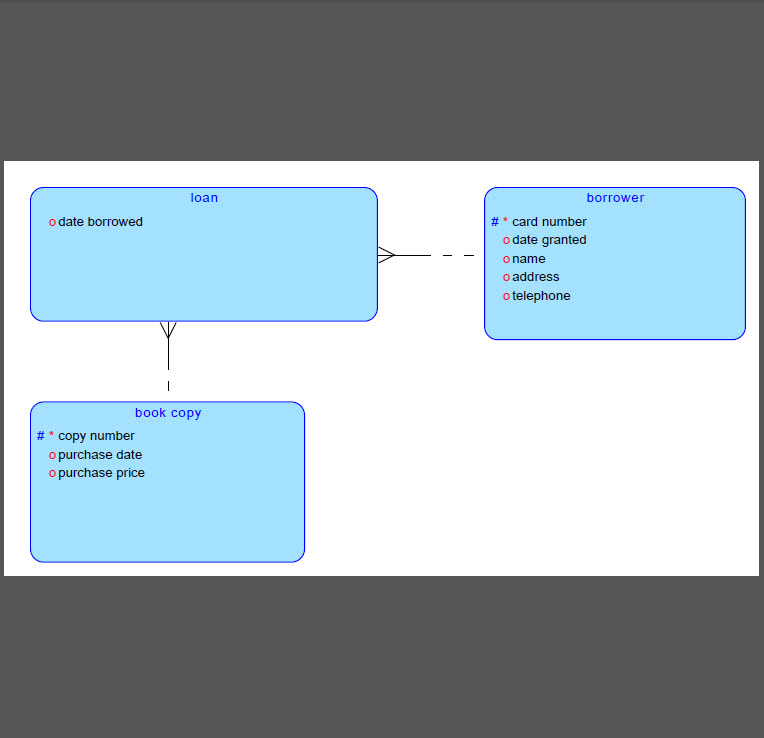
For instance if I have the Preference on and I execute a PDF report for entities, I will have the diagram in the end of the report:

ea_rep1

If I click the name of the entity Loan, it will navigate me to the details of that entity:

ea_rep2

There will also be the TOC for a PDF report and if I choose an element from that I will be automatically navigated to the element details on the report:

toc_pdf


If I have subviews defined I can also see them in the TOC. If I click the name of a subview I will be automatically navigated to that subview in the report:

toc_pdf2


What’s new in Data Modeler 4.2EA? Part 6: Include select statement in views reports

The new preference, Include select statement in views reports, for reporting in Data Modeler 4.2EA includes the SQL statement used for the query to the report.

ea2_14

To generate a report on views select Table Views report template:

ea2_10

If the preference has not been set the report would look something like this:

ea2_12

And if it has been set it might look something like this:

ea2_11

The report will show the SQL statement for the view in the new Select Statement field in a report template for Table Views.


What’s new in Data Modeler 4.2EA? Part 5: Generate HTML report TOC in separate file

In Data Modeler 4.2EA there are some new preferences for reporting. Let’s first see the new preference Generate HTML report TOC in separate file.

ea2_13

This preference ONLY affects reports generated in HTML format.

This does not affect the generated report itself: it looks the same does not matter if you chose this preference or not. But it does affect to the files generated for the report. In our example a report generated without this preference only has one file: in our example AllTablesDetails_NoSeparateTOC.html. Whereas the report with this preference on has three files: AllTablesDetails_SeparateTOC.html, AllTablesDetails_SeparateTOC_index.html and AllTablesDetails_SeparateTOC_toc.html.

ea2_9

Note that whenever we generate a report with Data Modeler (no matter how we chose the preferences) also a file report_data.xml is generated.

Why would I like to get the TOC in separate file? While the TOC is in separate file I can for example browse the report without the TOC or print the report.


What’s new in Data Modeler 4.2EA? Part 4: New preferences for Reporting

Starting in version 4.2.0 (build 917) known as 4.2EA there are new preferences for reporting that allow you to generate even better Standard template reports.

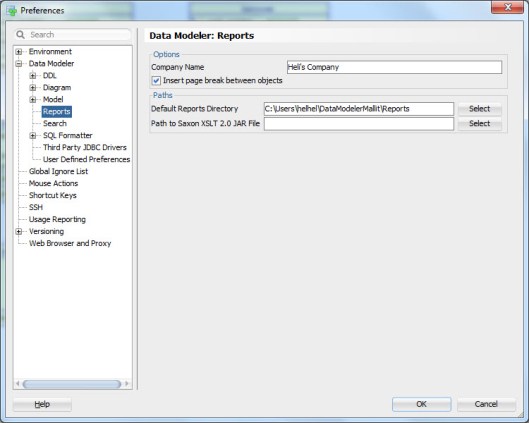
The Preferences before this release were:

ea2_8

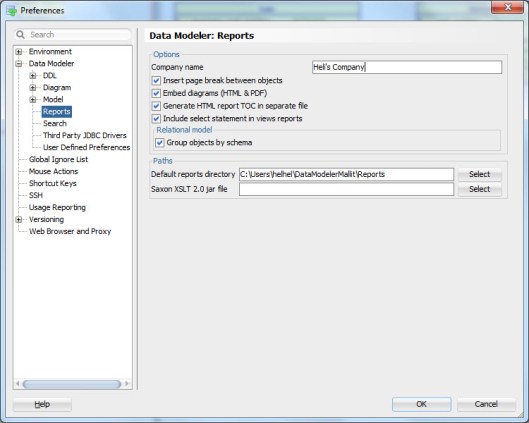
And since 4.2EA:

ea2_7

There are five new preferences that will make your reports look and work even better than before. I will explain these Preferences in detail on my next blog posts  🙂 Stay tuned  😀

What’s new in Data Modeler 4.2EA? Part 3: A View and a Query

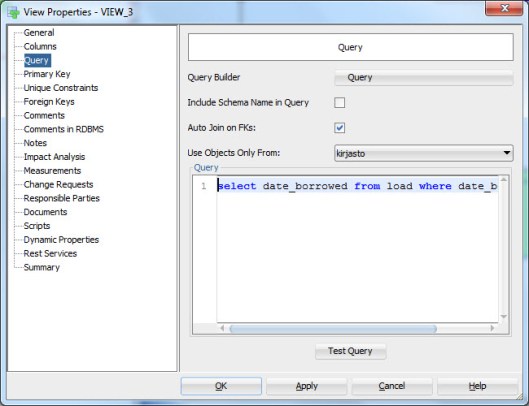
Starting in version 4.2.0 (build 917) known as 4.2EA you can define the query for a view without using the Query Builder. You can simply type or copy/paste the SQL query wanted to the new Query box in a new Query tab located in the View Properties:

ea2_6

You can test the query by pressing the Test Query button. If I had pressed that button I had noticed that I made a typo on table name (load vs. loan)  😀 This button is very useful…

Of course the Query Builder is also available if you rather use that. But when and why would I like to use this new functionality? I know that using this functionality there will be no lost of formatting, no problems with hints, no problems with the comments inside the query etc. In short no editing that is not done by me  🙂


What’s new in Data Modeler 4.2EA? Part 2: Change Requests

Enhancements in Change Requests

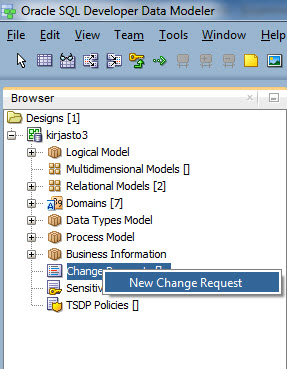
Starting in version 4.2.0 (build 917) known as 4.2EA you can create Change Requests in the Browser. Right-click the Change Request in the Browser and select New Change Request.

ea2_3


There is also a new tool for managing the Change Requests called Change Requests Administration. You can find it under the Tools menu:

ea2_4

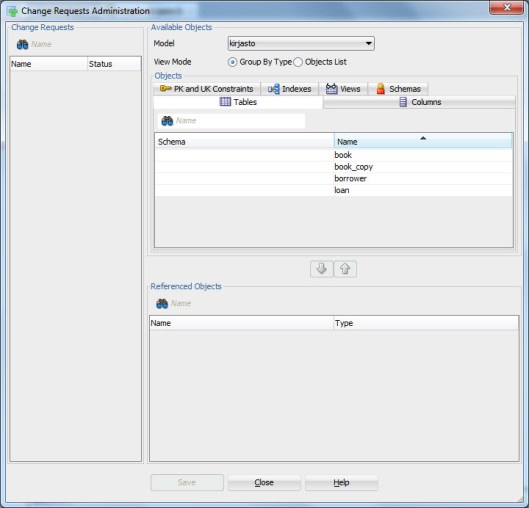
And this is how the tool looks like:

ea2_5

Are you interested in learning more about Change Requests?

https://helifromfinland.wordpress.com/2014/10/18/handling-change-requests-with-data-modeler/


What’s new in Data Modeler 4.2EA? Part 1: Design Rules

4.2EA is mostly bug fixes but there are also some new features that I think you should know about. I will blog about some of them in a serie of What’s new in Data Modeler 4.2EA posts. This is the first one of that serie.

Design rules for a subview or a selected set of objects

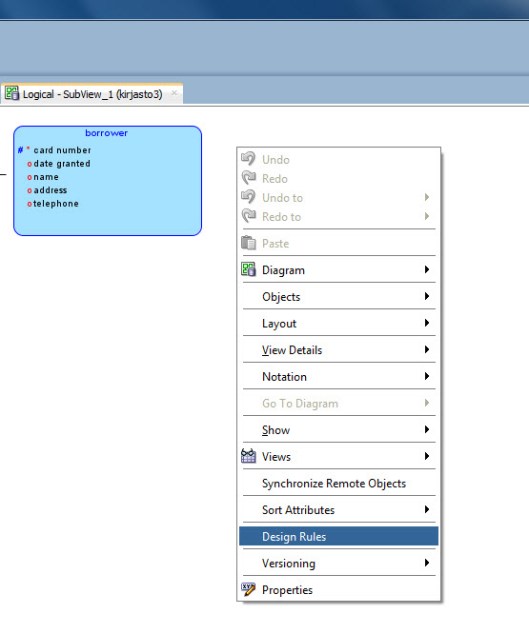
Starting in version 4.2.0 (build 917) known as 4.2EA you can apply design rules to objects in a subview (they will not be applied to objects that do not exist in this subview). Simply right-click on the canvas of a subview and select Design Rules.

ea2_1

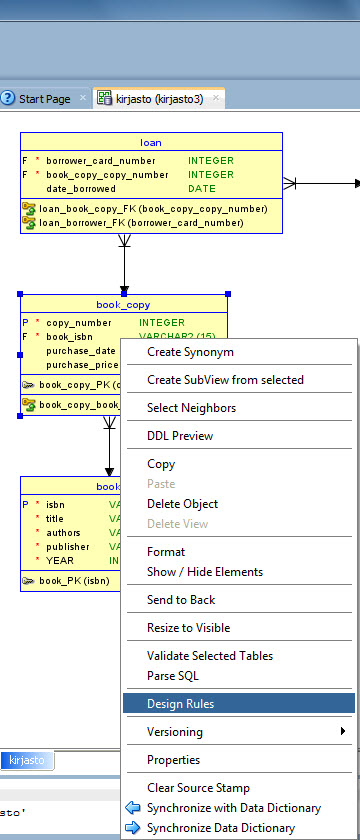
You can also select one or more objects from the canvas, right-click and select Design Rules. The rules will only apply to the selected objects.

ea2_2


What is a Design Rule?

https://helifromfinland.wordpress.com/2016/07/21/design-rules/